Phone · Yapzek Bridge
Let AI take your calls
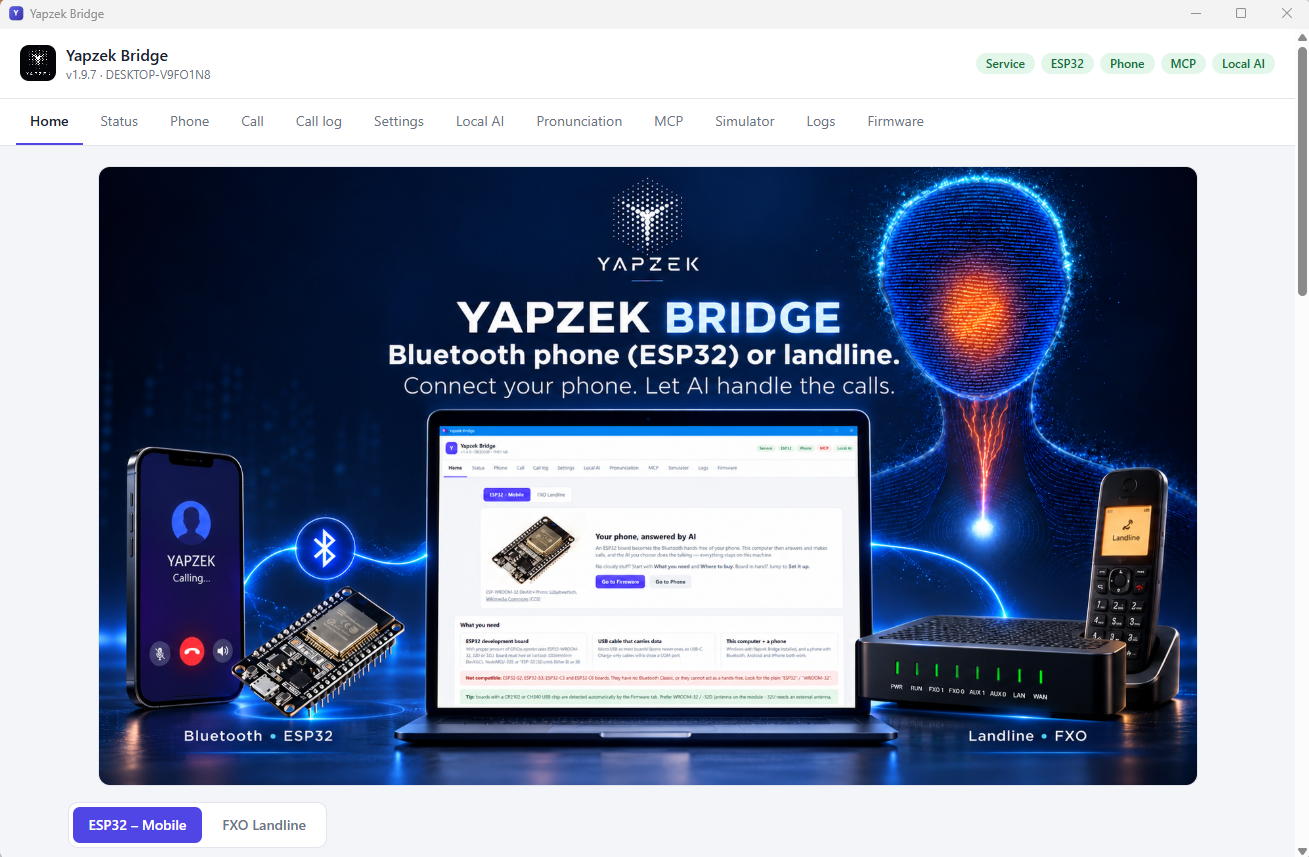
Yapzek Bridge connects your mobile phone (over Bluetooth, with an ESP32 board) or your landline (with a Dinstar FXO gateway) to your computer. Apex — or the AI you choose — answers and makes the calls. Everything runs on your own computer.
Mobile phone — ESP32
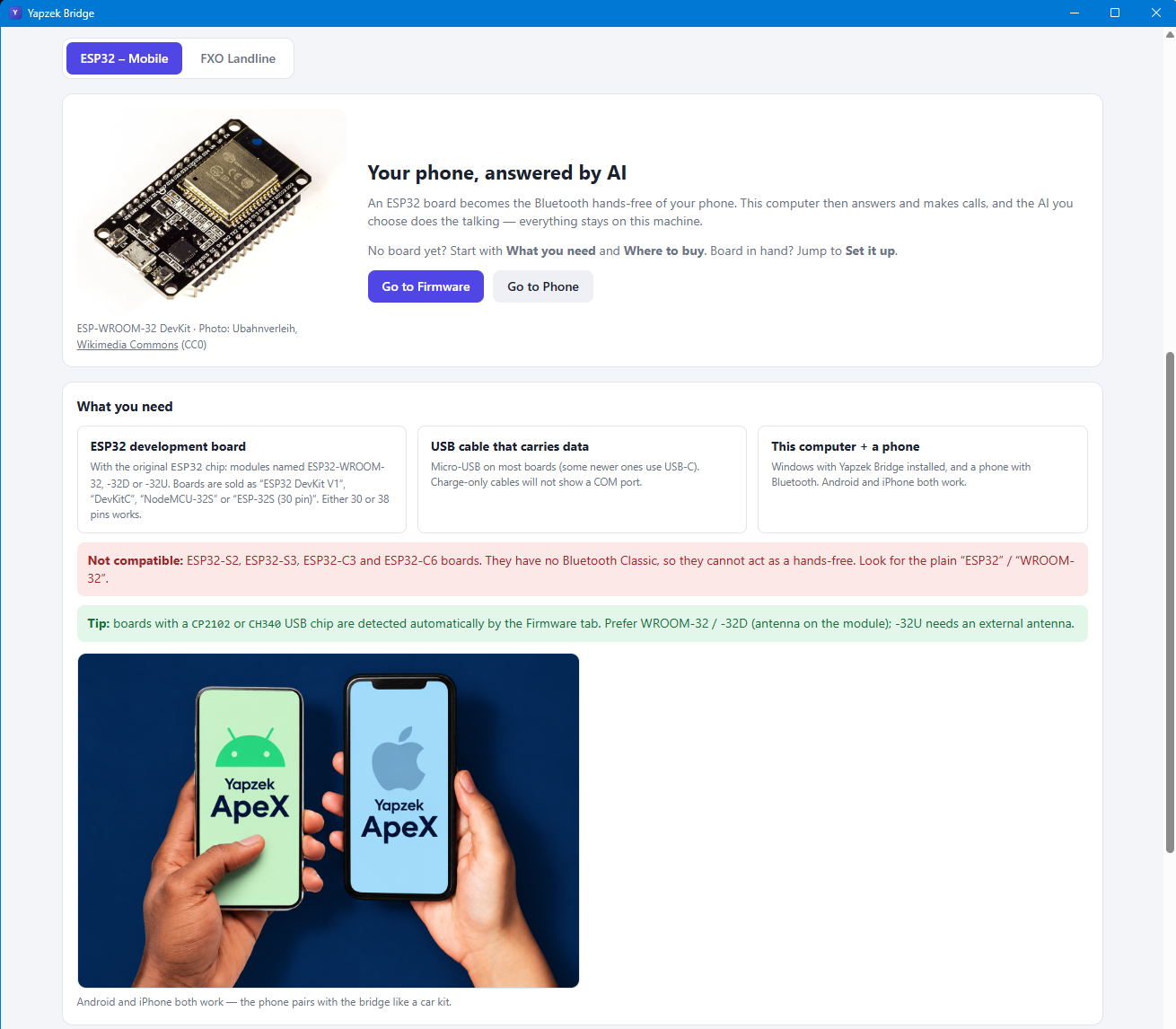
Your phone, answered by AI
An ESP32 board becomes the Bluetooth hands-free of your phone. Your computer then answers and makes calls, and the AI you choose does the talking — everything stays on your computer.
What you need
ESP32 development board
With the original ESP32 chip: modules named ESP32-WROOM-32, -32D or -32U. Boards are sold as “ESP32 DevKit V1”, “DevKitC”, “NodeMCU-32S” or “ESP-32S (30 pin)”. Either 30 or 38 pins works.
USB cable that carries data
Micro-USB on most boards (some newer ones use USB-C). Charge-only cables will not show a COM port.
A computer + a phone
Windows with Yapzek Bridge installed, and a phone with Bluetooth. Android and iPhone both work.
Not compatible: ESP32-S2, ESP32-S3, ESP32-C3 and ESP32-C6 boards. They have no Bluetooth Classic, so they cannot act as a hands-free. Look for the plain “ESP32” / “WROOM-32”.
Tip: boards with a CP2102 or CH340 USB chip are detected automatically by the Firmware tab. Prefer WROOM-32 / -32D (antenna on the module); -32U needs an external antenna.
Where to buy
Each link opens a search for compatible boards. Check that the listing says ESP32-WROOM-32 / DevKit, not S3 or C3.
- Amazon.comSearch “ESP32-WROOM-32 development board” ↗
- Amazon.com.trSearch “ESP32-WROOM-32” ↗
- TrendyolSearch “esp32 wroom-32” ↗
- RobotistanSearch “esp32” ↗ — look for “ESP32 WROOM 32D Geliştirme Kartı”.
- EspressifESP32 — maker’s page ↗ · ESP32-WROOM-32 datasheet (PDF) ↗
Set it up
- Plug the board into your computer.Use the USB cable. Windows usually installs the CP210x / CH340 driver by itself. If no port shows up in the next step, install the driver from the chip maker (Silicon Labs CP210x or WCH CH340) and reconnect.
- Flash the firmware.In Yapzek Bridge, open the Firmware tab. The port is detected automatically. Click Detect to confirm the chip, then Flash. It takes about a minute; the board restarts as YAPZEK-XXXX. The flashing tool is built into the app — nothing else to install.
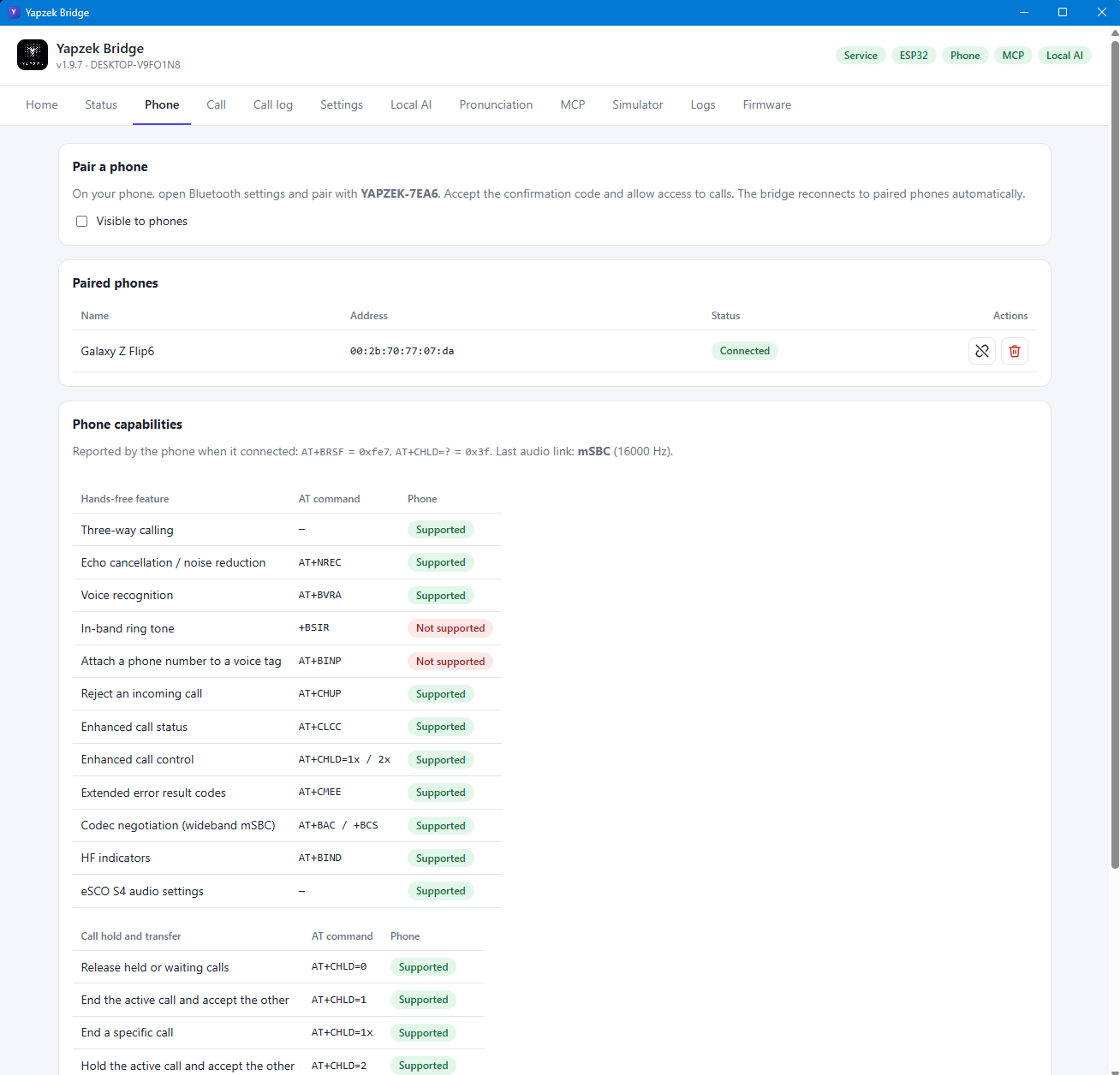
- Pair your phone.On the phone: Bluetooth settings → pair with YAPZEK-XXXX. Accept the confirmation code and allow access to calls. The bridge reconnects to paired phones automatically.
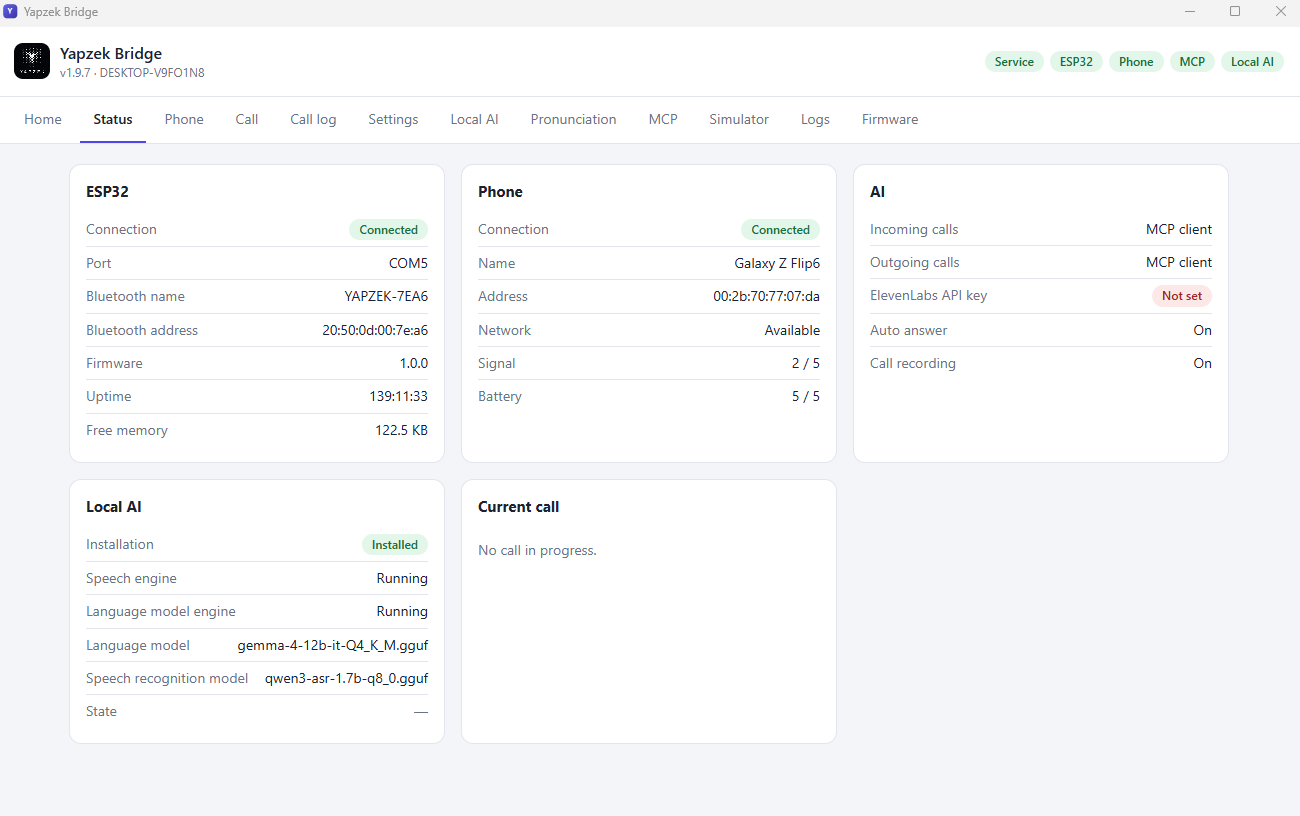
- Check the connection.The Phone tab shows the phone as Connected; the Status tab shows the ESP32 and the phone.
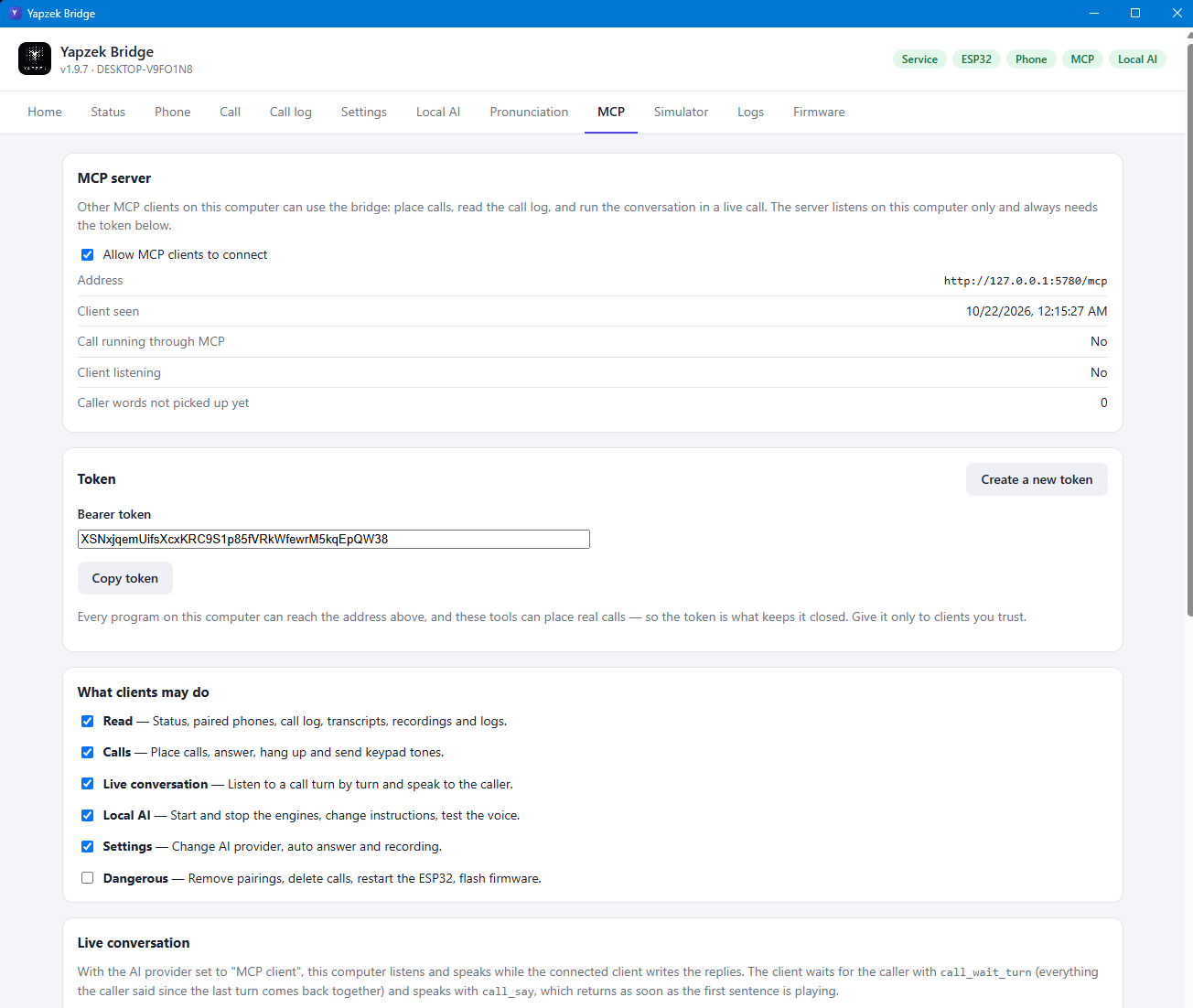
- Choose who talks.Settings tab: pick the AI for incoming and outgoing calls — ElevenLabs (API key + agents), Local AI (runs on your computer) or an MCP client such as ApeX / here. Set auto-answer and recording, then save.
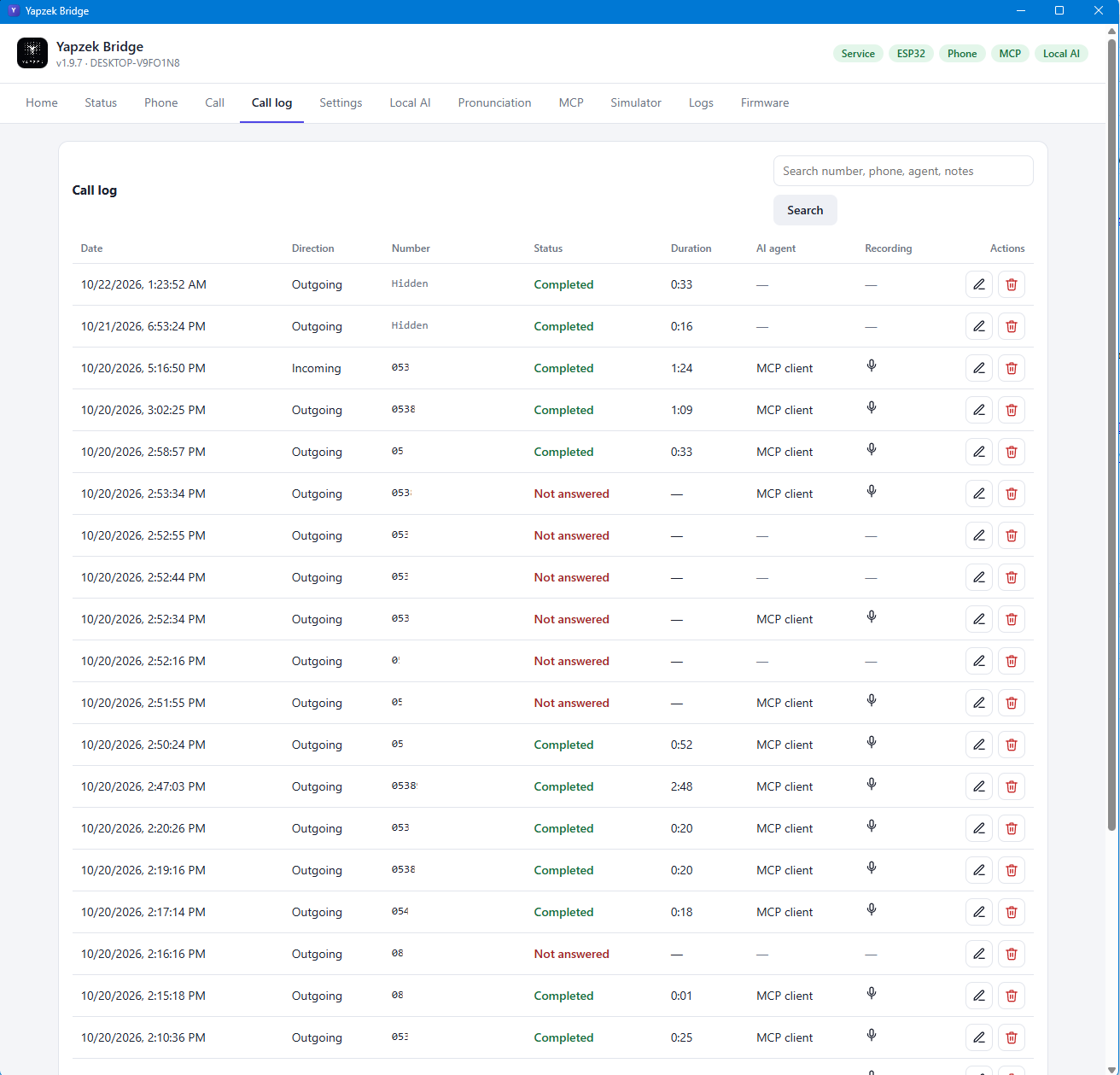
- Make or take a call.When the phone rings the bridge answers and the AI talks; the Call tab shows the live conversation. Dial out from the Call tab. Every call is in the Call log with its recording and transcript.
Landline — FXO gateway
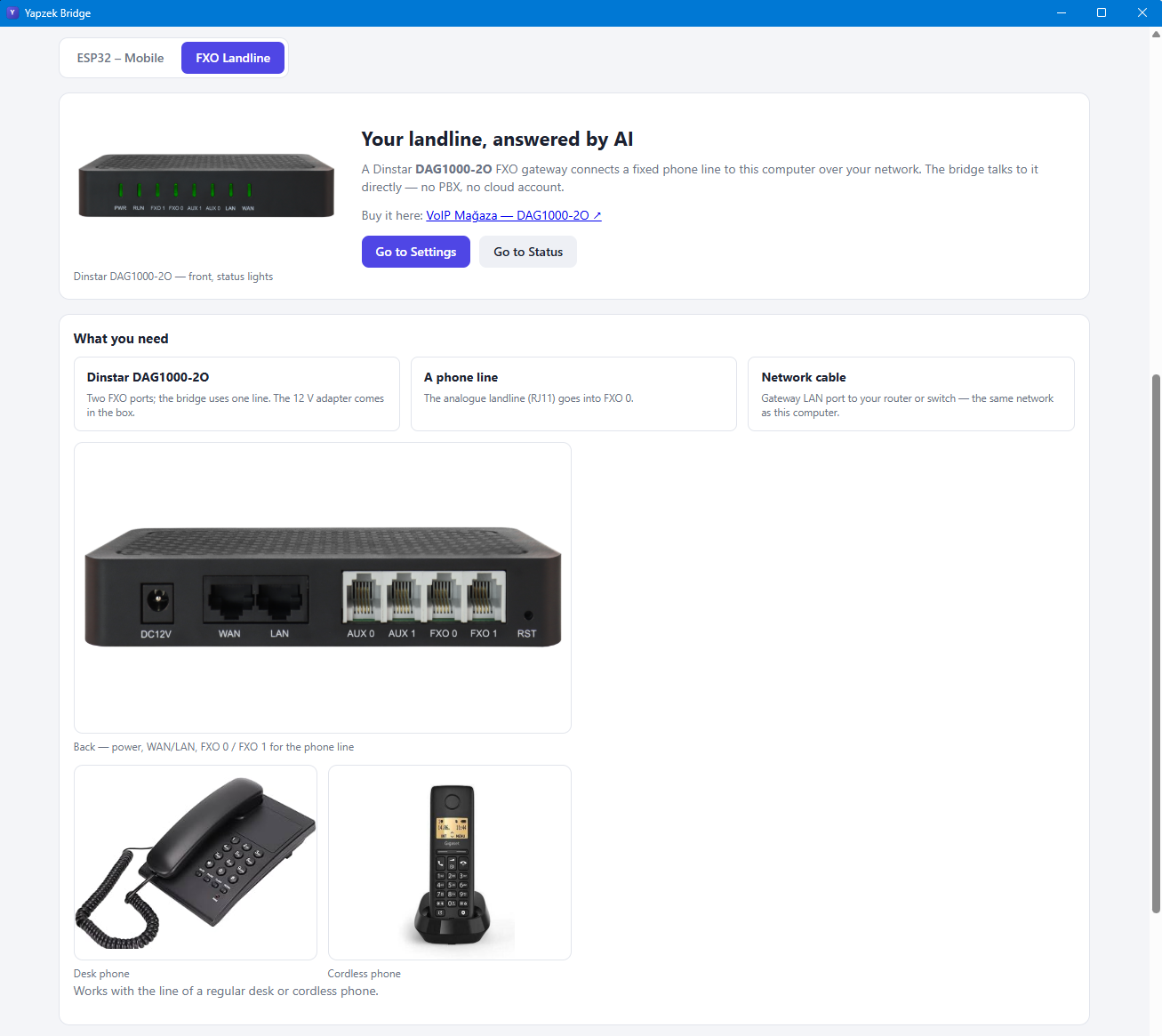
Your landline, answered by AI
A Dinstar DAG1000-2O FXO gateway connects a fixed phone line to your computer over your network. The bridge talks to it directly — no PBX, no cloud account.
- Buy it here:VoIP Mağaza — DAG1000-2O ↗
- DinstarMaker’s website ↗
What you need
Dinstar DAG1000-2O
Two FXO ports; the bridge uses one line. The 12 V adapter comes in the box.
A phone line
The analogue landline (RJ11) goes into FXO 0.
Network cable
Gateway LAN port to your router or switch — the same network as your computer.
Set it up
- Connect the gateway.Plug the phone line into FXO 0, connect LAN to your network and power the gateway with its 12 V adapter. Find its address in your router’s device list and open it in a browser (the manual has the default login).
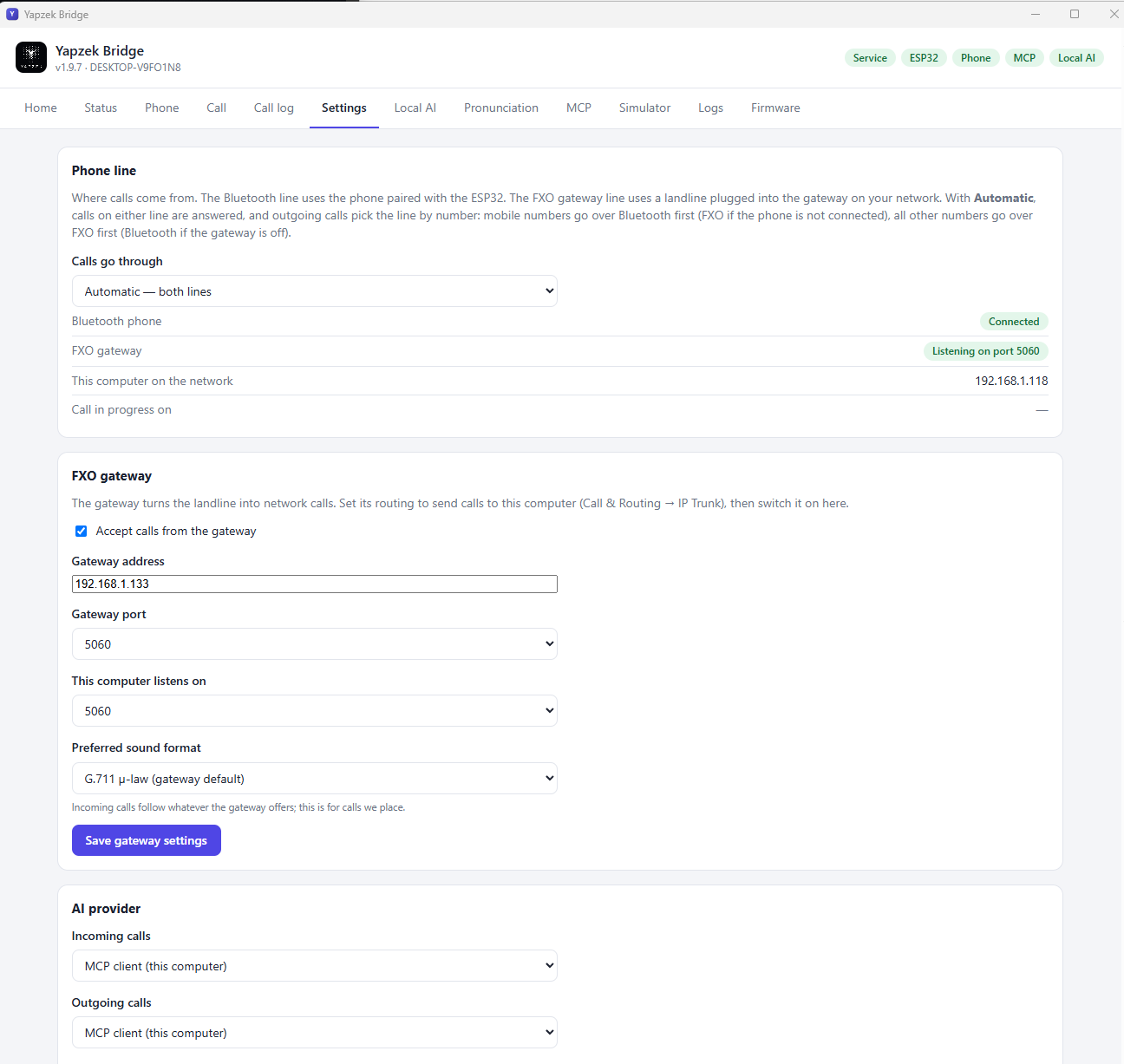
- Tell the gateway where your computer is.In the gateway: add an IP trunk with your computer’s network address and port 5060 (Yapzek Bridge shows the address under Settings → Phone line). Keep registration, authentication and heartbeat off — the bridge does not register.
- Make the line ring into the bridge.Port group: add FXO port 0 with registration off and “Offhook auto-dial” set to a number (for example 1000) with 0 s delay. Routing: Tel→IP from that port group to the IP trunk, and IP→Tel from the IP trunk to the port group, both with prefix “any”.
- Check the audio profile.IP profile: codec G.711 (PCMU or PCMA) and DTMF as RFC 2833. Save and let the gateway restart if it asks.
- Switch the bridge to the landline.Settings → Phone line: switch on the FXO gateway, enter its address, choose it as the active line and save. The Status tab shows “FXO gateway — ready”.
- Make or take a call.Calls on the landline ring into the bridge and the AI answers; dial out from the Call tab.