How to
Set up Apex your way.
Open Settings from the gear on the panel or from the ApexHere icon in the taskbar tray. Every screen is explained below, in the order Settings lists them.
Personal details in the screenshots — addresses, devices, memory — are blurred.
01 General
General
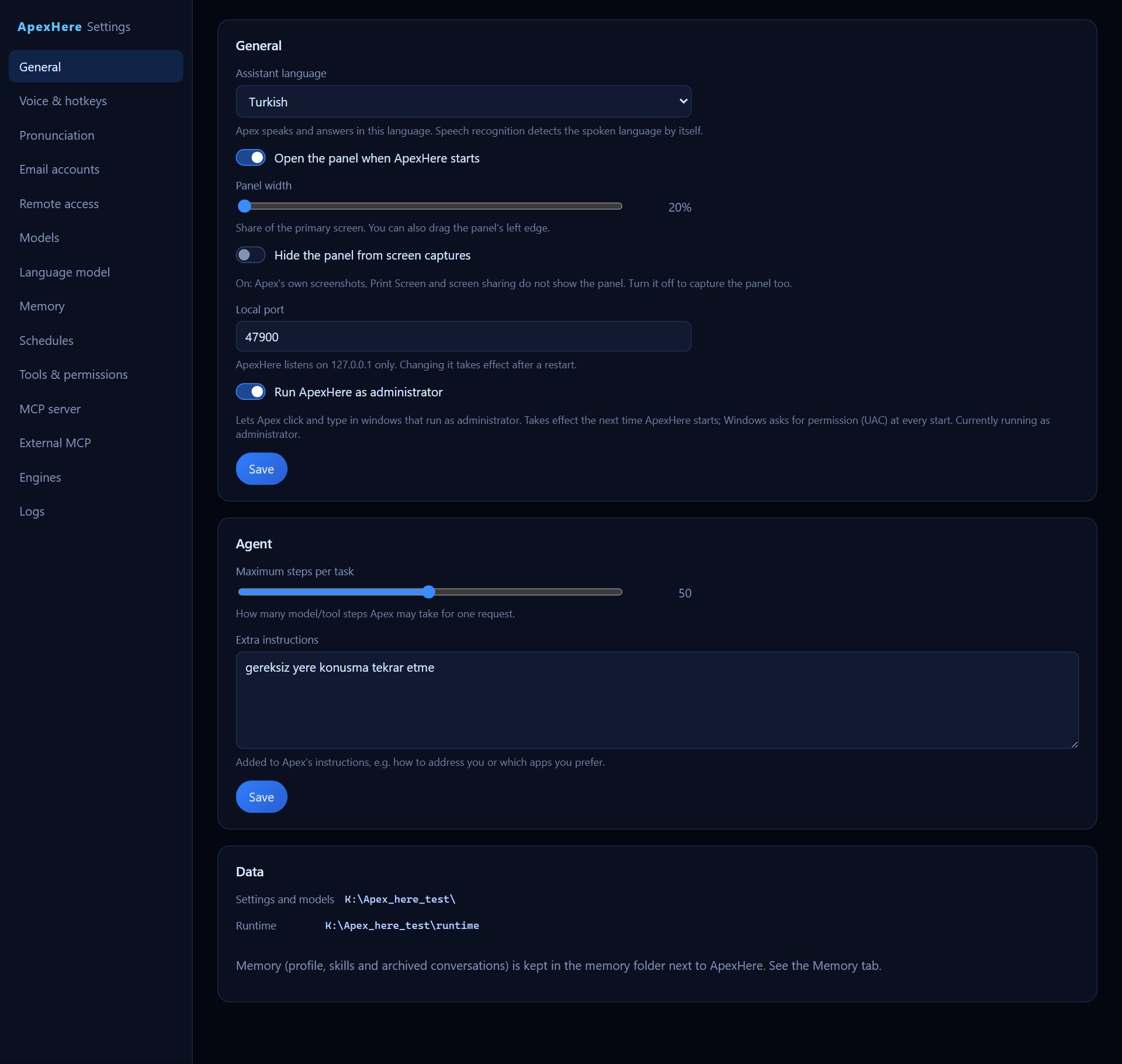
Basic behaviour of ApexHere: the language Apex speaks, how the side panel looks and starts, and how far Apex may go on one request.
 12345678
- Assistant language — Apex speaks and answers in this language. You do not need to change anything for listening: speech recognition detects the spoken language by itself.
- Open the panel when ApexHere starts — Shows the Apex panel as soon as ApexHere starts. Turn it off if you prefer to open the panel yourself with its hotkey.
- Panel width — How much of the primary screen the panel takes, from 20% to 50%. You can also drag the panel's left edge.
- Hide the panel from screen captures — When on, Apex's own screenshots, Print Screen and screen sharing do not show the panel. Turn it off if you want the panel to appear in captures too.
- Local port — The port ApexHere listens on, on this computer only (127.0.0.1). Change it only if another program uses the same port; it takes effect after a restart.
- Run ApexHere as administrator — Lets Apex click and type in windows that run as administrator. It applies the next time ApexHere starts, and Windows asks for permission (UAC) at every start.
- Maximum steps per task — How many model and tool steps Apex may take for one request, from 1 to 100. Raise it if long tasks stop before they are finished.
- Extra instructions — Free text added to Apex's instructions, for example how to address you or which apps you prefer.
TipEach section has its own Save button; changes are not stored until you press it. The Data section at the bottom shows where settings and models are kept.
02 Voice & hotkeys
Voice & hotkeys
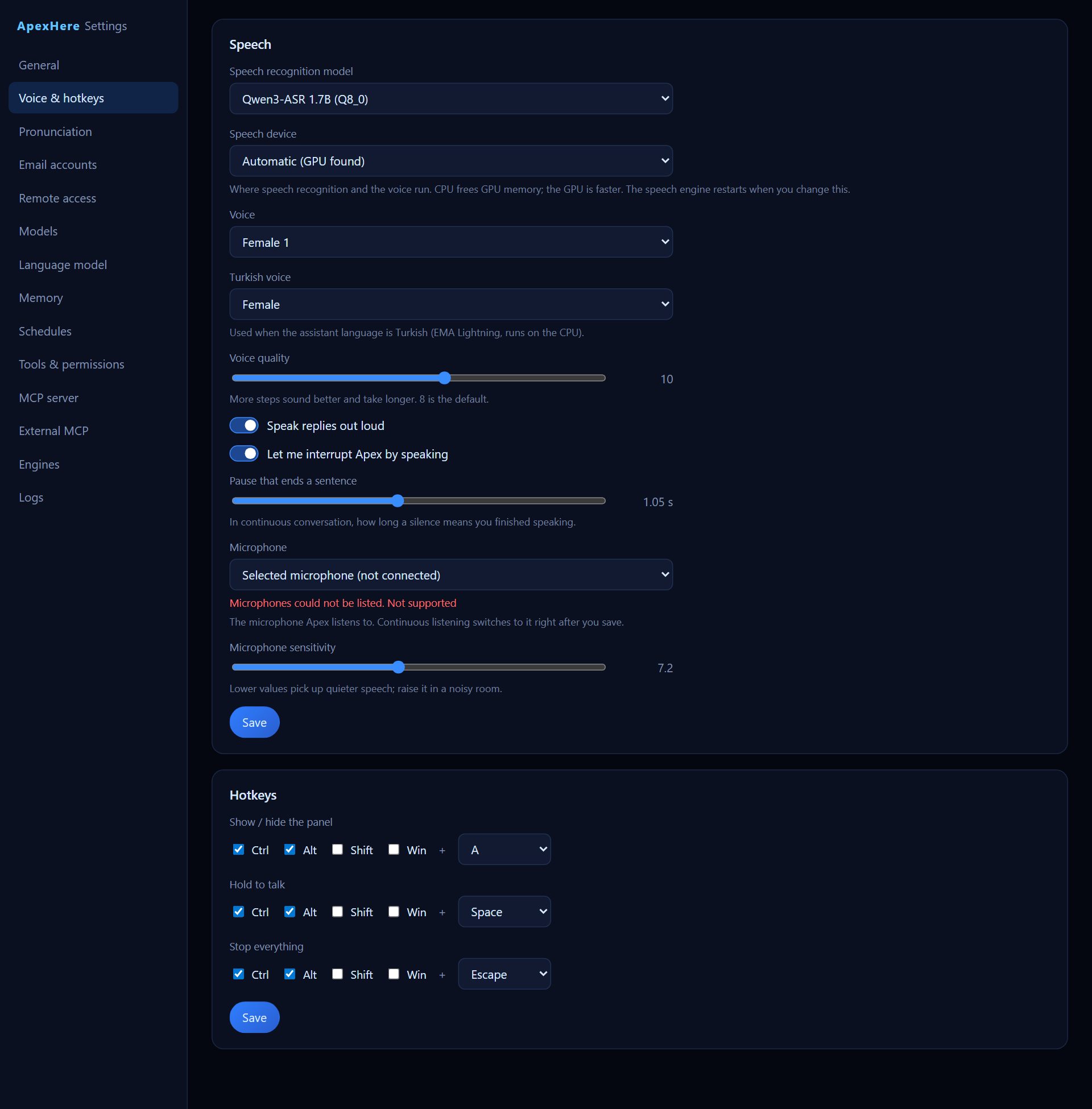
How Apex hears you and how it sounds, plus the keyboard shortcuts for the panel, talking and stopping.
 123456789
- Speech recognition model — The model that turns your speech into text. Models that are not downloaded yet are marked; get them on the Models tab.
- Speech device — Where speech recognition and the voice run: Automatic, GPU (NVIDIA) or CPU. CPU frees GPU memory, the GPU is faster; the speech engine restarts when you change this.
- Voice — The female or male voice Apex uses to speak. A separate Turkish voice setting is used when the assistant language is Turkish.
- Voice quality — More steps sound better but take longer, from 2 to 16. 8 is the default.
- Speak replies out loud — When on, Apex reads its answers aloud. Turn it off if you only want to read the replies in the panel.
- Let me interrupt Apex by speaking — Lets you cut in while Apex is talking, just by starting to speak.
- Pause that ends a sentence — In continuous conversation, how long a silence means you finished speaking (0.30 to 2.00 seconds). Raise it if Apex answers before you finish.
- Microphone — The microphone Apex listens to, or System default. Continuous listening switches to it right after you save. Next to it, Microphone sensitivity lets you pick up quieter speech or raise it in a noisy room.
- Hold to talk — A key combination (Ctrl, Alt, Shift, Win plus a key) that you hold down while you talk to Apex. The Hotkeys section also sets Show / hide the panel and Stop everything.
TipIf a hotkey is already used by another program, saving shows that it could not be registered; pick a different combination.
03 Pronunciation
Pronunciation
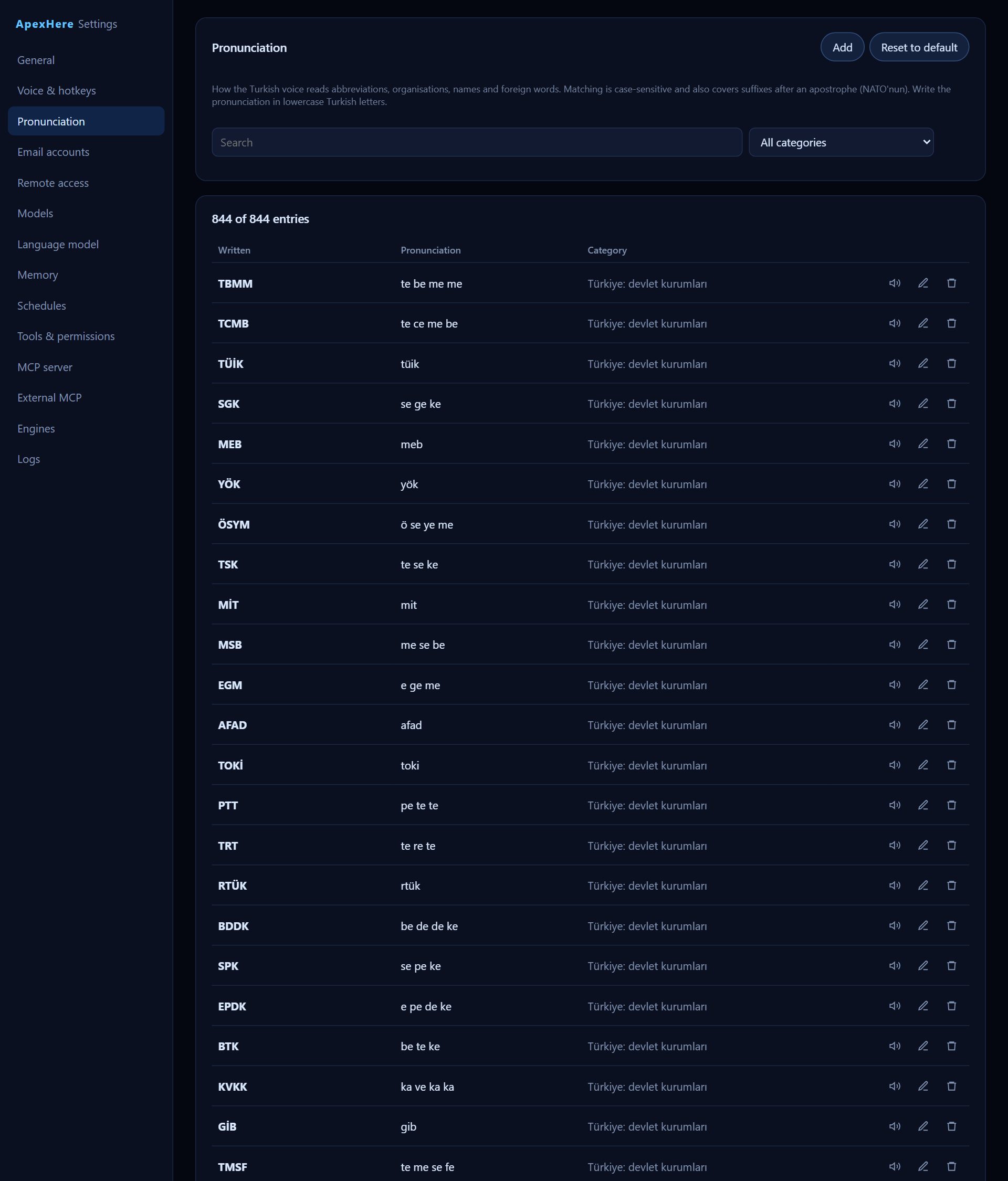
A dictionary that tells the Turkish voice how to read abbreviations, organisations, names and foreign words.
 12345
12345- Add — Opens a form for a new entry. Use the search box and the category list next to it to find existing entries first.
- Reset to default — Replaces your list with the default list. All your own changes are lost, so you are asked to confirm first.
- Category — The group the entry belongs to, chosen from the existing categories.
- Written — The word exactly as it appears in text, for example NATO, Microsoft or Dr. Matching is case-sensitive and also covers suffixes after an apostrophe (NATO'nun).
- Pronunciation — How it should be read, written in lowercase Turkish letters, for example nato, maykrosoft, doktor.
- Listen — Plays the pronunciation with the Turkish voice so you can check it before saving. The speaker icon in each row does the same for existing entries.
TipType the pronunciation, press Listen, adjust until it sounds right, then Save.
04 Email accounts
Email accounts
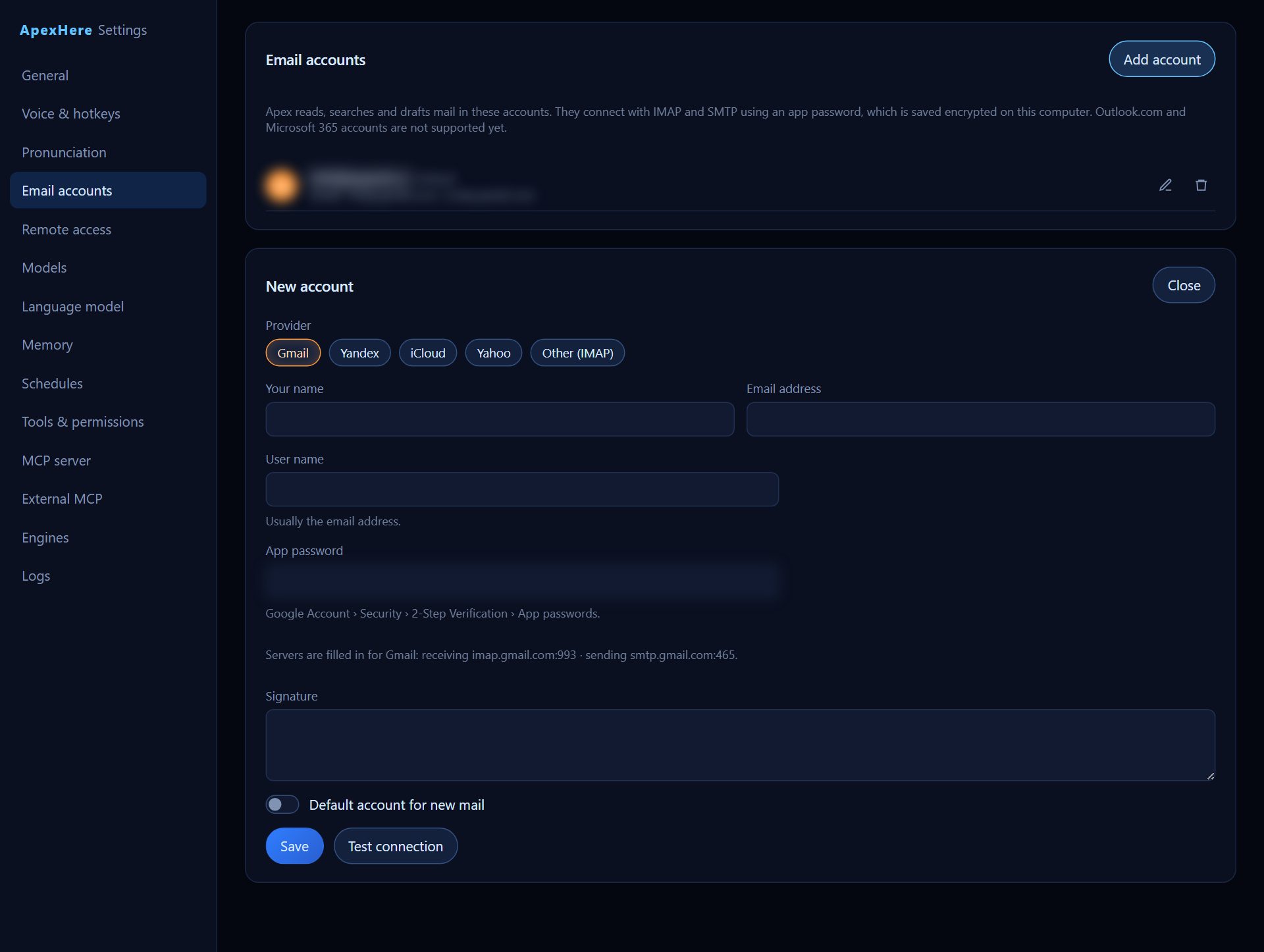
Mail accounts Apex can read, search and draft mail in. Accounts connect with IMAP and SMTP using an app password; Outlook.com and Microsoft 365 are not supported yet.
 1234678
- Add account — Opens the form for a new account. You can add more than one account.
- Provider — Choose your mail provider. For a listed provider the server addresses are filled in for you; choose the custom option to enter them yourself.
- User name — The name used to sign in, usually the email address.
- App password — An app password created at your provider, not your normal password. It is saved encrypted on this computer; when editing, leave it empty to keep the saved one.
- Incoming server (IMAP) — Only shown for a custom provider: the receiving server with its port and security (SSL / TLS, STARTTLS or None). The sending server (SMTP) is set the same way below it.
- Signature — Text added to mail written from this account.
- Default account for new mail — Makes this the account Apex uses for new mail. The default account is marked in the list.
- Test connection — Signs in and checks both receiving (IMAP) and sending (SMTP), and tells you which part fails.
TipRemoving an account only stops Apex from reading it; your mail stays on the server.
05 Remote access
Remote access
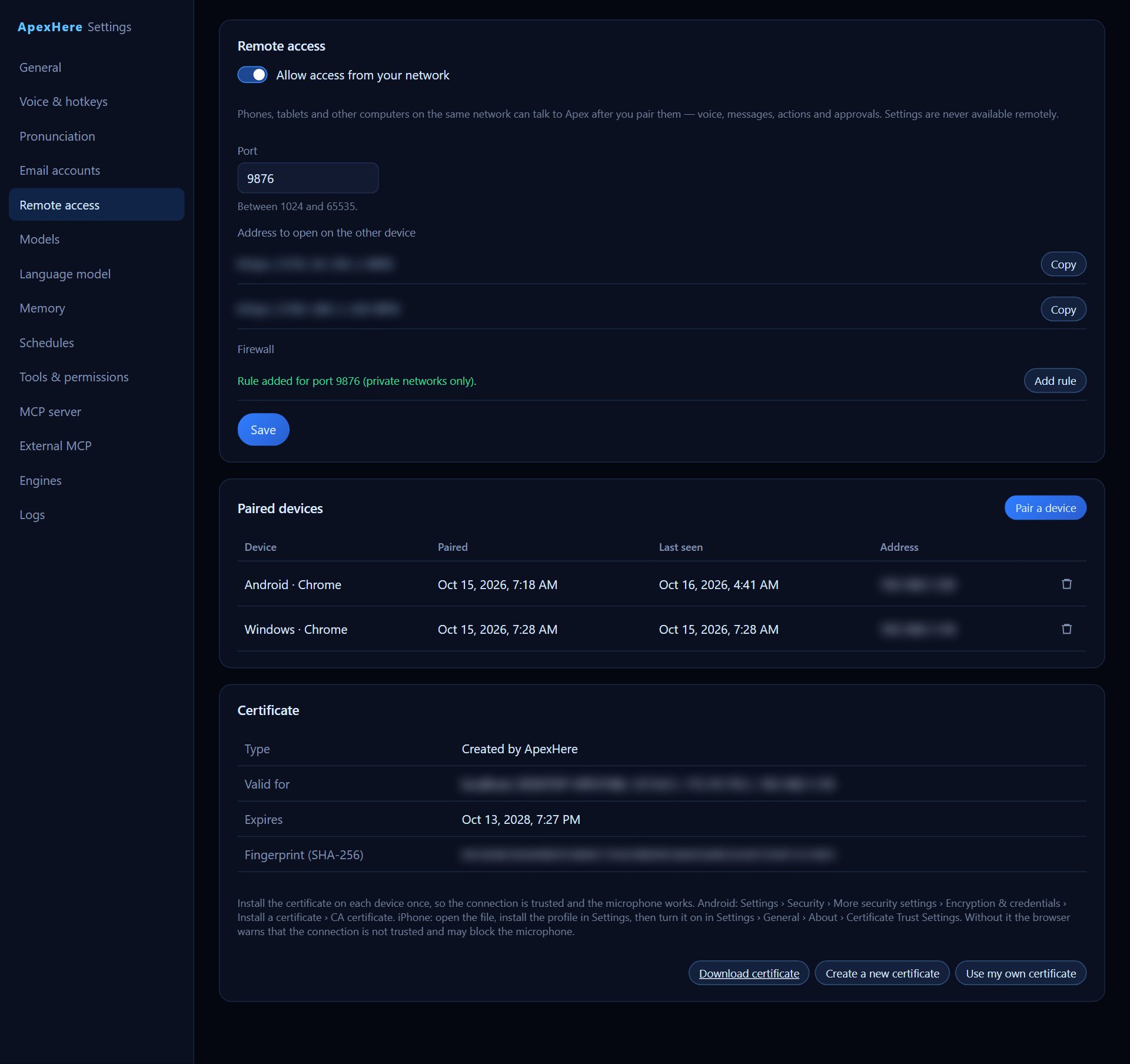
Lets phones, tablets and other computers on the same network talk to Apex after you pair them: voice, messages, actions and approvals. Settings are never available remotely.
 12345678
- Allow access from your network — Turns remote access on or off. After saving, ApexHere may ask to be restarted; a Restart now button appears at the top.
- Port — The network port other devices connect to, between 1024 and 65535.
- Address to open on the other device — Shown when remote access is on: the address to open in the other device's browser. Use Copy to copy it.
- Add rule — Adds a Windows Firewall rule for the port, for private networks only. Without it other devices cannot connect. Windows asks for administrator permission.
- Pair a device — Shows a QR code and a 6-digit code. Scan the QR with the device's camera, or open the address and type the code. The code works once and changes every 5 minutes.
- Download certificate — Downloads the certificate to install once on each device, so the connection is trusted and the microphone works. Without it the browser warns that the connection is not trusted and may block the microphone.
- Create a new certificate — Makes ApexHere create a fresh certificate, for example when this computer's address is not covered by the current one.
- Use my own certificate — Lets you upload your own .pfx certificate with its private key and password instead of the one ApexHere creates.
TipPair a device is only available after remote access is on and ApexHere has been restarted. Paired devices are listed with when they were last seen and can be removed at any time.
06 Models
Models
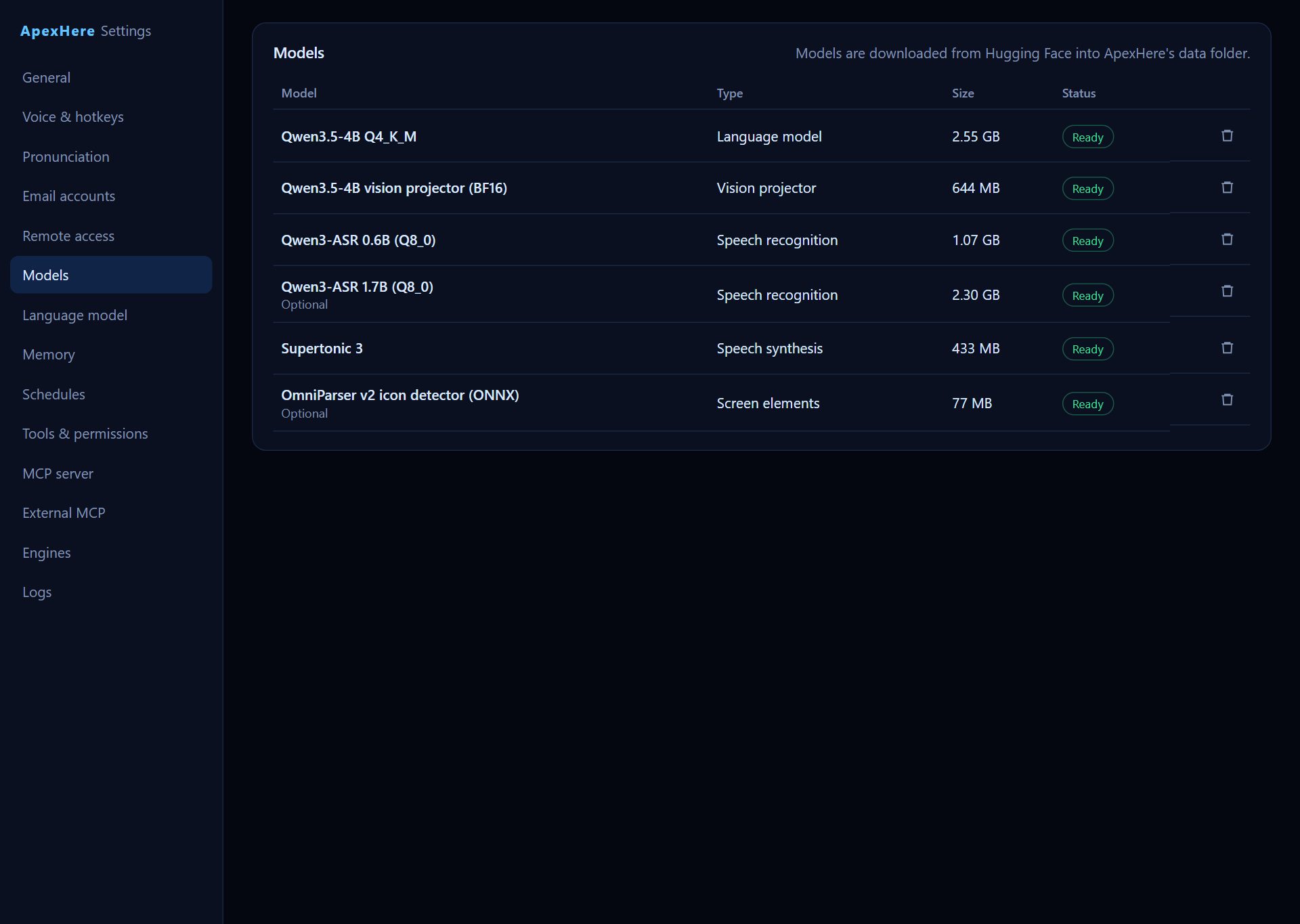
The AI models ApexHere runs on this computer. Models are downloaded from Hugging Face into ApexHere's data folder.
 123
123- Type — What the model is for: language model, vision projector, speech recognition, speech synthesis or screen elements. Models marked Optional are not required.
- Size — The size on disk, or the approximate download size if the model is not downloaded yet.
- Status — Ready, Not downloaded, or a progress bar while the model is being downloaded or imported.
- Download — Starts downloading a missing model. Progress is shown in the Status column.
- Import file… — Copies a .gguf file you already have instead of downloading it again.
- Cancel — Stops a download or import that is in progress.
TipDeleting a downloaded model with the trash icon stops the engine that uses it.
07 Language model
Language model
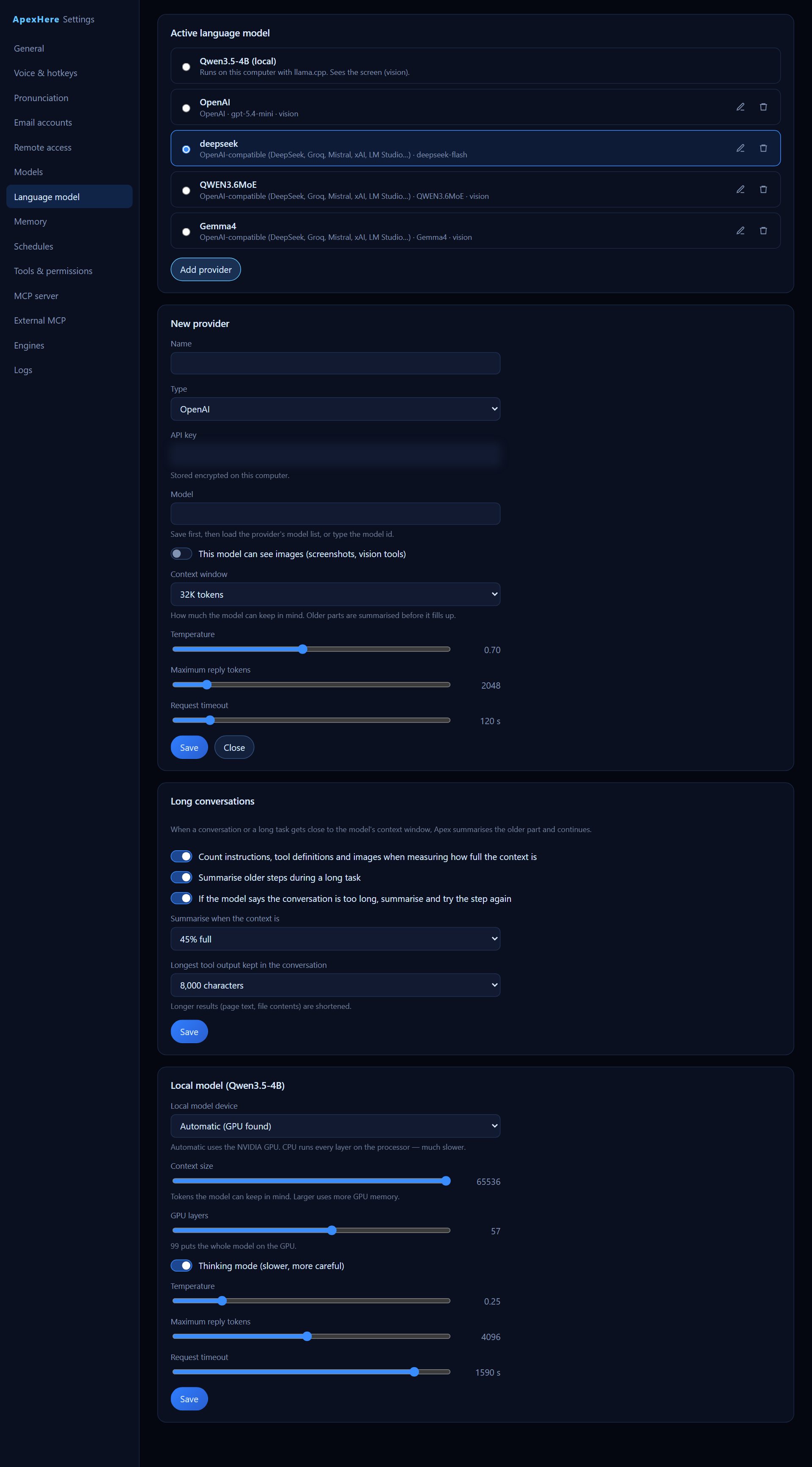
Choose which language model does Apex's thinking: the local model on this computer or an online provider, and how long conversations are handled.
 123456789
- Active language model — Pick the model Apex uses right now. Qwen3.5-4B (local) runs on this computer and can see the screen; providers you add appear below it.
- Add provider — Adds an online model provider such as OpenAI, Anthropic, Google Gemini, Ollama or any OpenAI-compatible service.
- Type — The kind of provider. OpenAI-compatible and Ollama also ask for a Base URL.
- API key — Your key from the provider, stored encrypted on this computer. When a key is saved you can type a new one to replace it or remove it.
- Model — The model id to use. Save the provider first, then press Load models to choose from its list, or type the id yourself. Test sends a short request to check the connection.
- This model can see images (screenshots, vision tools) — Turn on only if the chosen model accepts images, so Apex can send it screenshots.
- Summarise when the context is — In Long conversations, how full the context may get (30% to 75%) before Apex summarises the older part and continues.
- Local model device — Where the local model runs. Automatic uses the NVIDIA GPU; CPU is much slower. Without an NVIDIA GPU, Automatic does not start the local model, so choose a provider or CPU.
- Thinking mode (slower, more careful) — Lets the local model think before it answers. Answers take longer but are more careful. The local model restarts when you save.
TipLarger Context size for the local model lets it keep more in mind but uses more GPU memory.
08 Memory
Memory
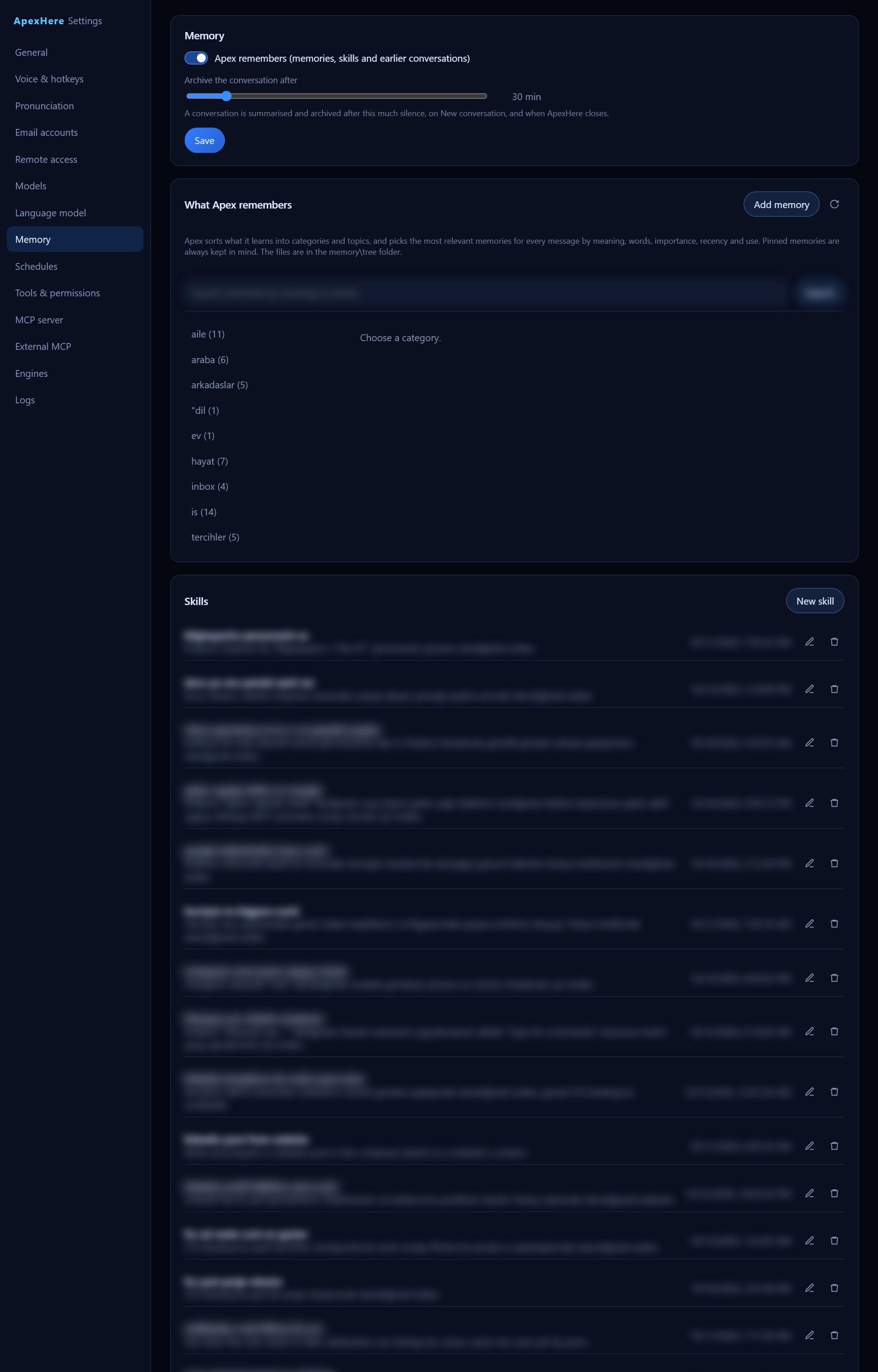
What Apex remembers about you, the skills it has learned and your archived conversations.
 123467
- Apex remembers (memories, skills and earlier conversations) — Turns Apex's memory on or off as a whole.
- Archive the conversation after — A conversation is summarised and archived after this much silence (1 to 240 minutes), when you start a New conversation, and when ApexHere closes.
- What Apex remembers — Memories sorted into categories and topics. Apex picks the most relevant ones for every message. Search by meaning or words, or click a category to browse.
- Add memory — Adds a memory yourself: pick a category and topic, write one short sentence and set its importance from 1 (trivia) to 5 (essential).
- Always keep in mind (pinned) — Pinned memories are always kept in mind, not only when they match the message.
- New skill — Skills are step-by-step recipes. Apex saves one after it completes a multi-step task; here you can write or edit one with a name, when to use it, and its steps.
- Earlier conversations — Archived conversations with their summaries. Search titles, summaries and transcripts, open one to read the full transcript, or delete it.
TipThe memory files are kept in the memory\tree folder next to ApexHere.
09 Schedules
Schedules
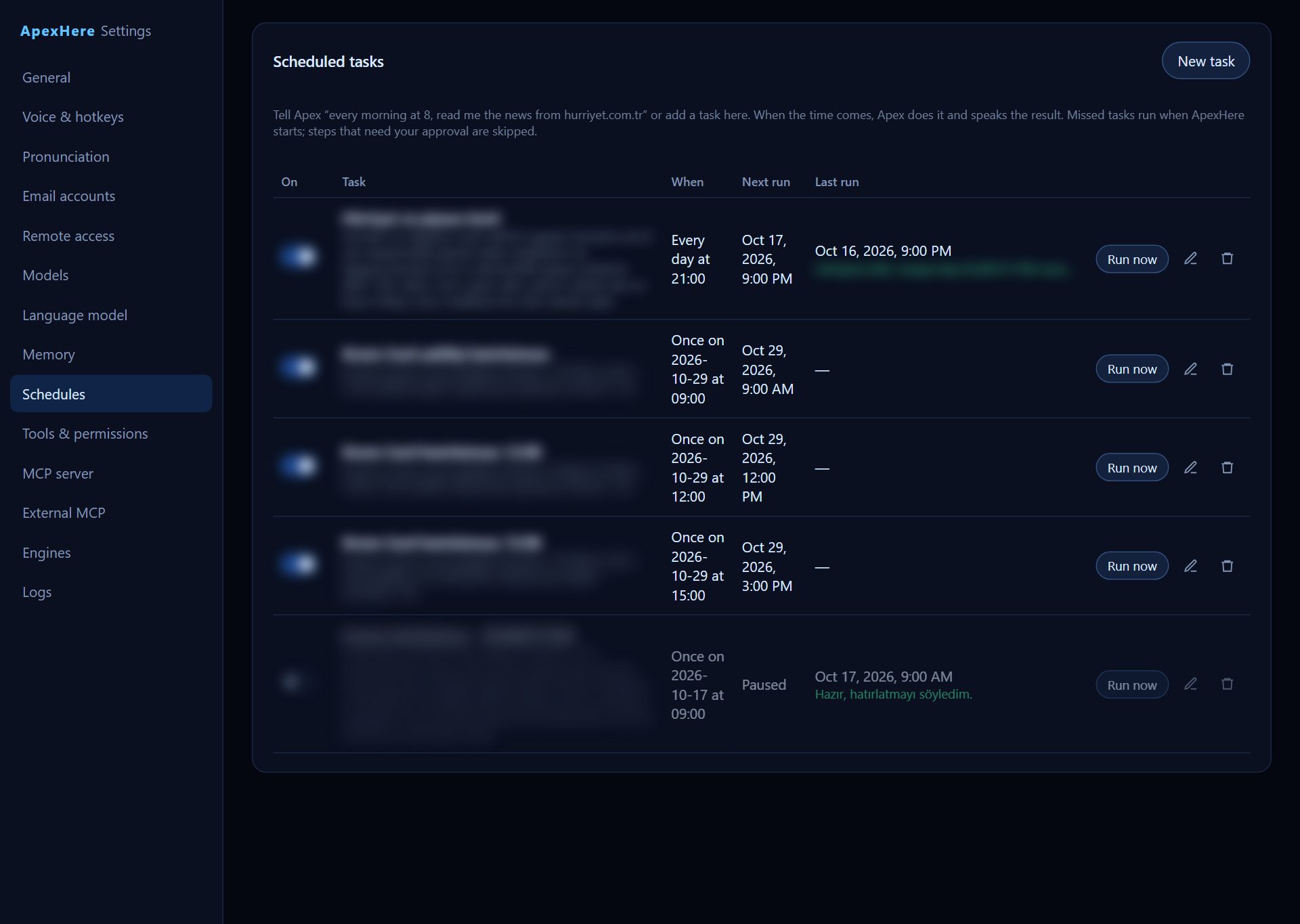
Tasks Apex does on its own at set times, then speaks the result. Add them here or just tell Apex, for example every morning at 8, read me the news.
 12349
12349- New task — Opens the form for a new scheduled task.
- On — Switches a task on or off without deleting it. A switched-off task shows Paused as its next run.
- Last run — When the task last ran and its result; green means it worked, red means it failed.
- Run now — Runs the task immediately, without waiting for its time.
- Name — A short name for the task, for example Morning news.
- What Apex should do — The request itself, written as you would say it to Apex.
- Repeat — Once, every day, weekdays (Mon–Fri), on chosen weekdays, every month, or every few minutes / hours. For monthly tasks, shorter months use their last day.
- Time — The time of day the task runs. For the once option you also pick a date.
- Every — Only for the every few minutes / hours option: 5 to 45 minutes or 1 to 12 hours.
TipTasks missed while the computer was off run when ApexHere starts. Steps that need your approval are skipped in scheduled tasks.
10 Tools & permissions
Tools & permissions
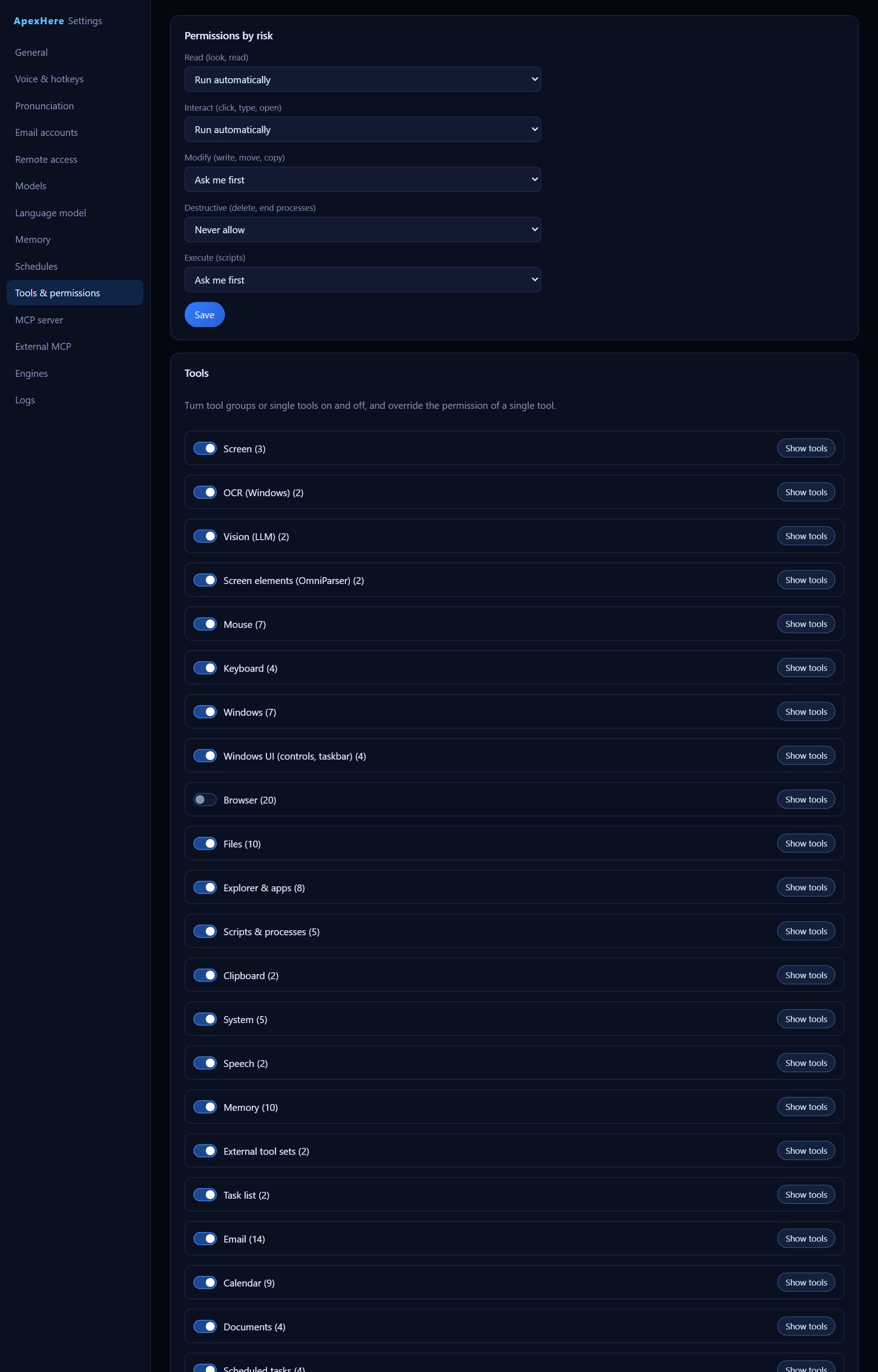
Decide what Apex may do on your computer on its own, what it must ask about first, and what it may never do.
 123456789
- Permissions by risk — Each kind of action has one rule: Run automatically, Ask me first or Never allow.
- Read (look, read) — Actions that only look at the screen or read things.
- Destructive (delete, end processes) — Actions that delete files or end programs. Ask me first or Never allow keeps you in control.
- Execute (scripts) — Running scripts. Which interpreters are allowed is set further down under Scripts.
- Show tools — In the Tools section, each group can be switched on or off. Show tools lists the single tools of a group so you can turn one off or give it its own rule instead of the risk default.
- Add folder… — File, Explorer and script tools can only reach the folders listed here. When the list is empty, your user folder is used.
- Allowed interpreters — The script languages Apex is allowed to run.
- Time limit per script — How long one script may run, from 10 to 1800 seconds.
- Screenshot width sent to the model — From 640 to 3840 pixels. Larger is sharper but uses more of the model's context.
TipTools from External MCP servers also appear here, so you can set their permissions the same way.
11 MCP server
MCP server
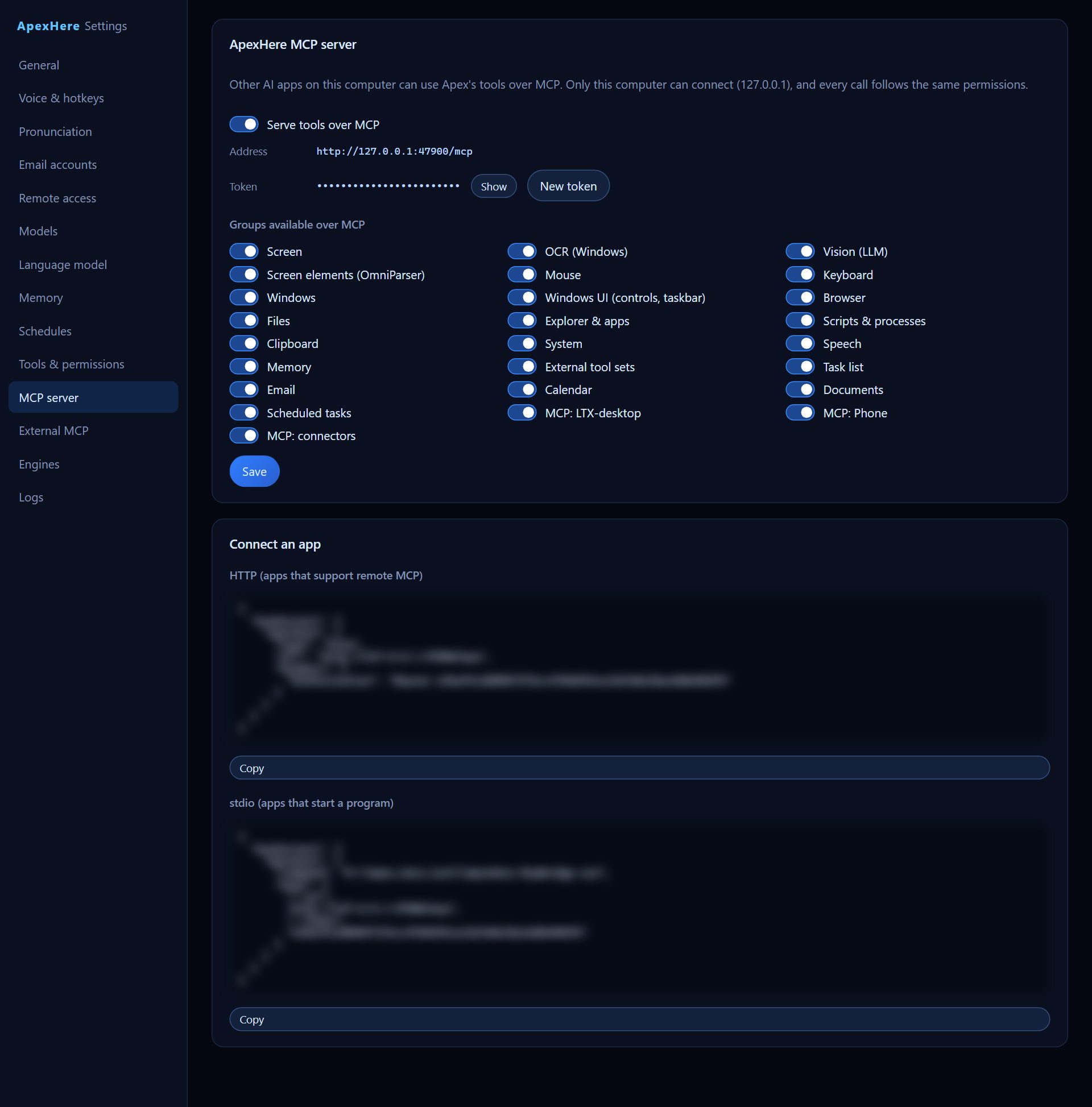
Lets other AI apps on this computer use Apex's tools over MCP. Only this computer can connect, and every call follows the same permissions.
 123456
- Serve tools over MCP — Turns the MCP server on or off.
- Address — The address other apps connect to.
- Token — The secret key apps use to connect. It is hidden; press Show to see it.
- New token — Creates a new token. Apps using the old one are disconnected, so you are asked to confirm.
- Groups available over MCP — Choose which tool groups other apps can use.
- Connect an app — Ready-made settings to paste into another app: one for apps that support remote MCP (HTTP) and one for apps that start a program (stdio). Press Copy under each.
TipRemember to press Save after turning the server or groups on or off.
12 External MCP
External MCP
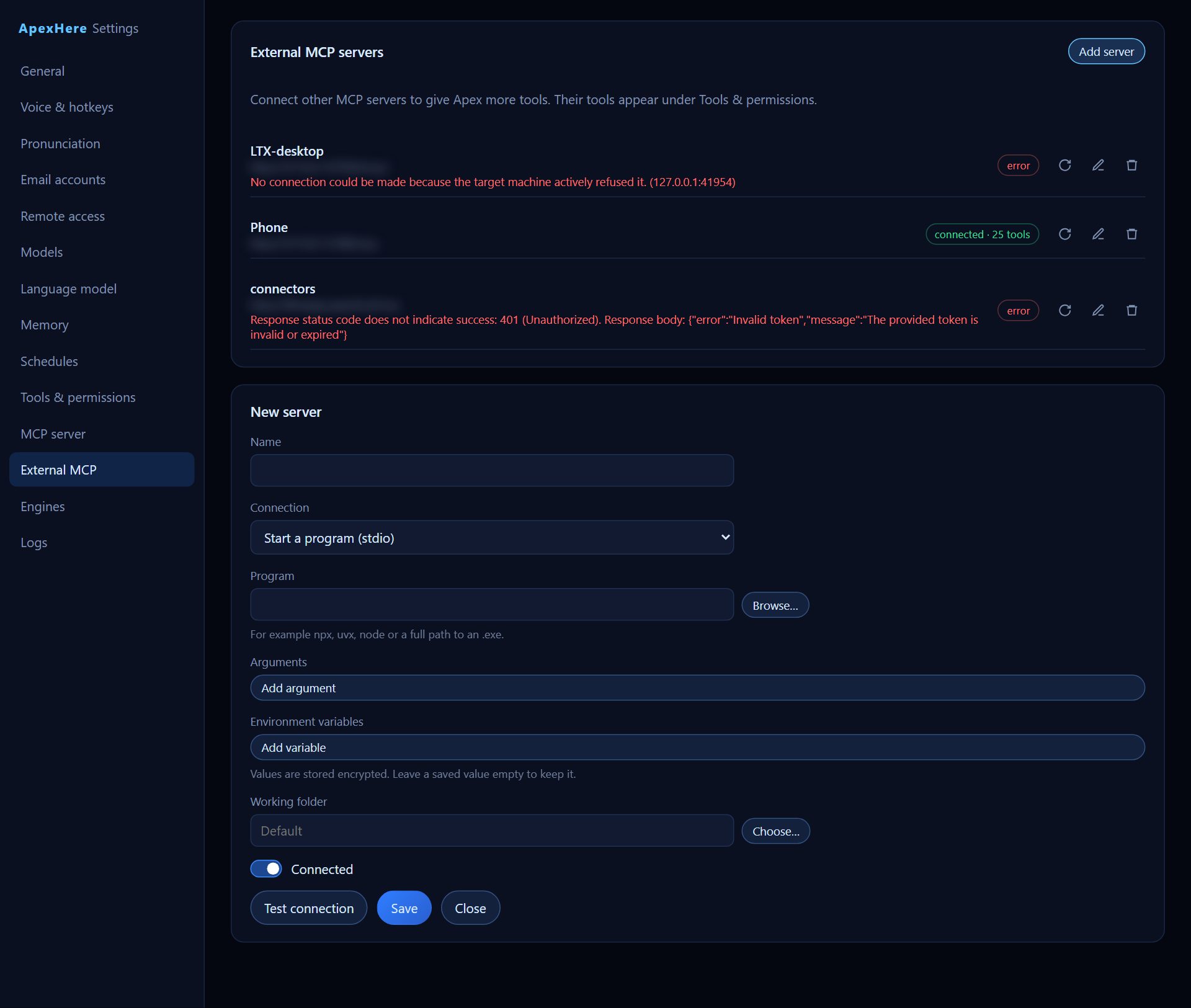
Connect other MCP servers to give Apex more tools. Their tools appear under Tools & permissions.
 123479
- Add server — Opens the form for a new server. Each server in the list shows whether it is connected and how many tools it offers.
- Connection — Start a program (stdio) or Connect to a URL (HTTP).
- Program — For a program: for example npx, uvx, node or a full path to an .exe. Use Browse… to pick it, and add any Arguments the server needs.
- Environment variables — Name and value pairs passed to the program, such as keys. Values are stored encrypted; leave a saved value empty to keep it.
- Server URL — For a URL connection: the address of the MCP server.
- Bearer token — Optional key for the URL connection, stored encrypted.
- Connected — Turn off to keep the server in the list but disconnected.
- Tools Apex may use — Appears after a successful connection. Tick the tools Apex may use; none selected means all tools of this server.
- Test connection — Tries to connect with the current settings and reports how many tools the server offers.
TipIf a server shows an error, use the reconnect icon in its row after fixing the settings.
13 Engines
Engines
The background programs that run the language model and speech on this computer. Use this screen to check they are running or restart them.
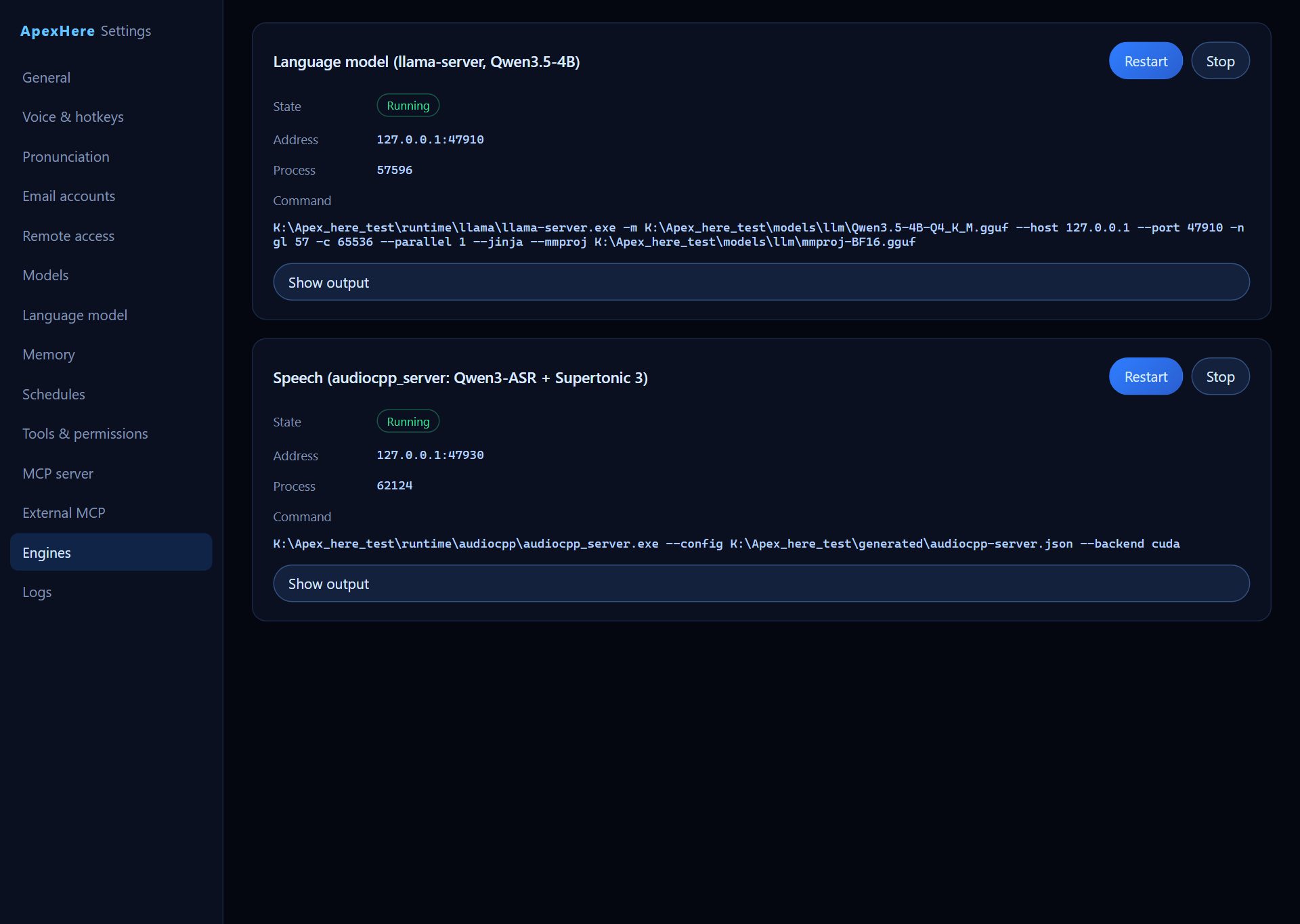 123456
- Language model (llama-server, Qwen3.5-4B) — The engine for the local language model.
- Speech (audiocpp_server: Qwen3-ASR + Supertonic 3) — The engine for speech recognition and the voice.
- State — Running, Loading, Starting, Stopped or an error, with details when available.
- Restart — Restarts a running engine. When the engine is not running the same button says Start.
- Stop — Stops the engine. It is available only while the engine is running, loading or starting.
- Show output — Shows the engine's recent output, useful when something does not work. Press Refresh output to update it.
14 Logs
Logs
ApexHere's recent activity log, newest first. Logs are kept in memory only and cleared when ApexHere exits.
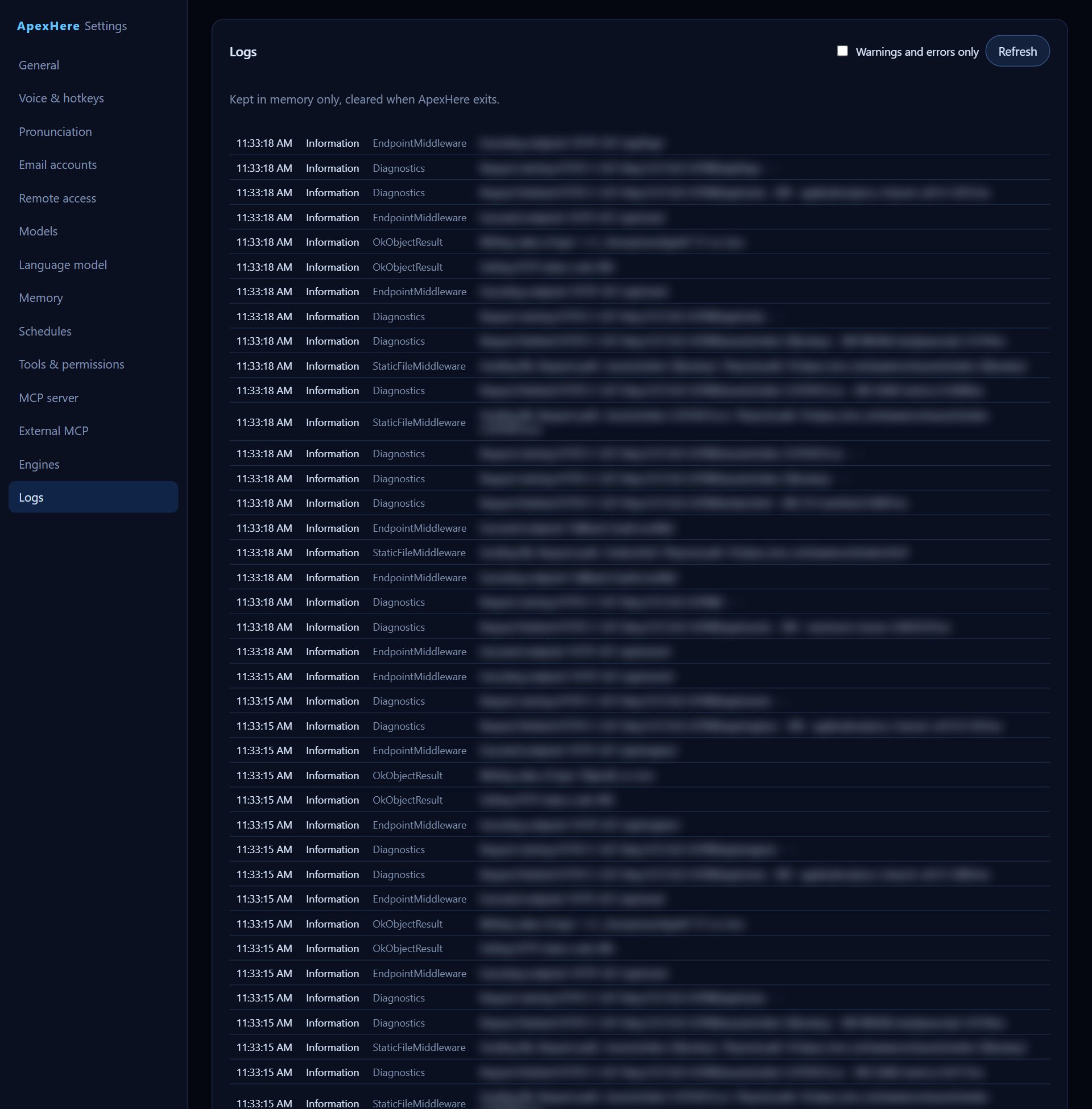 123
123- Logs — Each line shows the time, level, source and message.
- Warnings and errors only — Hides normal lines so you see only warnings and errors.
- Refresh — Loads the latest log lines.
TipBecause logs are cleared when ApexHere exits, check them before restarting if you are looking into a problem.
15 About
About
The version of ApexHere you are running, the models it uses, and the release notes of every version.
- Language model — The language model currently in use.
- Speech — The speech recognition and voice models in use.
- Data folder — Where ApexHere keeps its settings and models.
- Windows — The Windows version of this computer.
- Copy version info — Copies the version, build date, Windows version and models, handy when you report a problem.
- yapzek.ai — Opens the YAPZEK website.
TipThe Release notes section lists what is new, improved and fixed in each version; the newest one is open by default.